Movie remix · November 10, 2026
End of Watch AI Video Generator: Photo Remix
Put yourself and a friend into a seven-second locker-room movie moment. The End of Watch AI generator lets you choose who plays the lead, add an optional partner, and turn your portraits into a landscape video. Start by watching the reference beside the upload form so you can choose the right person for each role.
Create your video
Your photo
Lead portrait
Partner portrait (optional)
Length
Scene reference
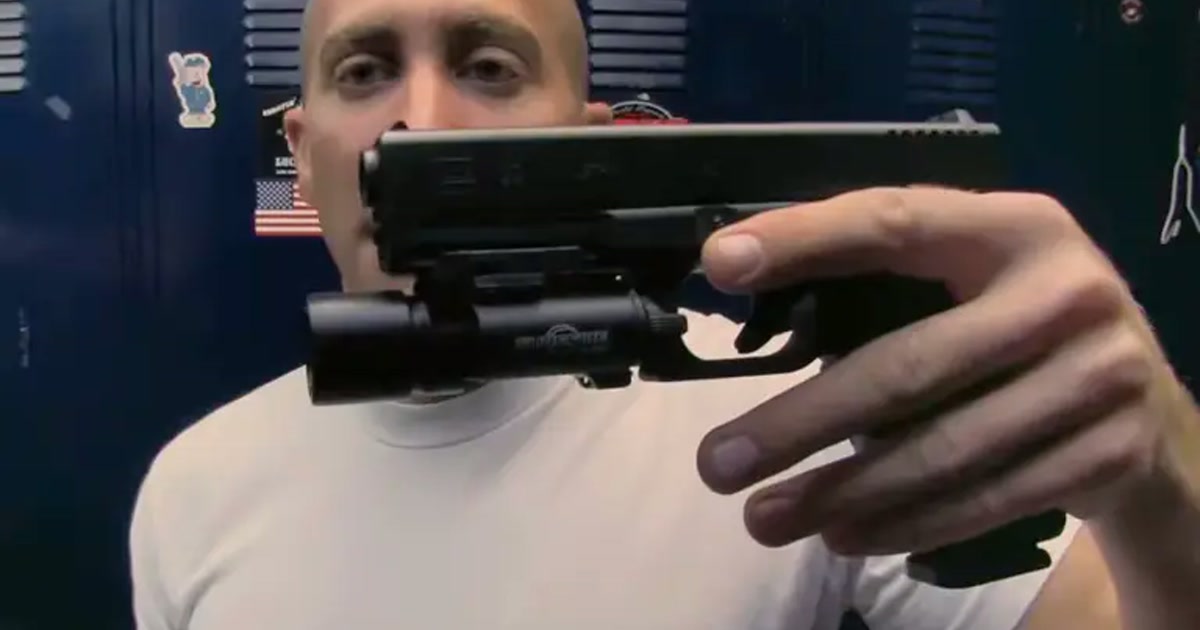
What happens in the End of Watch AI video?
The scene opens in a steady medium view. The lead checks their gear, turns toward a partner, pauses, and finishes facing the camera. Its appeal comes from giving an everyday interaction the deliberate rhythm of a movie scene. Casting familiar faces makes that small performance feel personal.
Watch the partner's position as well as the lead's movements. The exchange and final turn give the clip its shape. Because the output is a wide 16:9 video, both people and the space between them matter; keep that full view in mind when deciding where you will share it.
Choose who plays the lead and partner
The Lead portrait is required. Use it for the person you want to see checking their gear and turning toward the camera. The Partner portrait is optional: add a second person to personalize both roles, or leave it empty to keep the partner from the reference. Check the labels before submitting, especially when you are making a clip for two friends.
You have two photo options. With separate portraits, upload one image in each person's labeled slot. With one horizontal photo together, place the lead on the left and the partner on the right. Adjust the split control between them and check that each face sits inside the intended side. A photo with space between the two faces makes this easier.
Prepare photos for the End of Watch AI generator
Choose a sharp adult portrait with the whole face visible, even light, and enough room around the head and shoulders. A simple background helps you judge the face before uploading. For two separate portraits, try to use similarly clear photos so that one person is not much harder to recognize than the other.
The upload form accepts JPG, PNG, and WebP files up to 10 MB each. Check the image on a larger screen if you can: motion blur, sunglasses, strong beauty filters, and shadows across the eyes can be difficult to notice in a small thumbnail. Use photos you have permission to upload, with agreement from each adult pictured.
Generate your End of Watch AI video
Sign in, select the photo option, and check the portraits in the form. This template creates a seven-second landscape video for seven credits. New accounts start with zero credits, so buy a credit pack through Pricing before submitting your first task. Check your balance and the displayed cost while you are still on the form.
After submission, open My videos to follow the task. A queued task is waiting to start; a rendering task is being generated. When it is completed, play the result there. If generation fails, the credits used for that task are refunded. Check the task status before trying again so you can tell a pending video from a failed one.
Review the clip before downloading
First watch the complete seven seconds at normal speed. Does the gear check lead naturally into the turn and partner exchange? Then replay the moving parts: the lead's face during the turn, the hands near the gear, and the partner's face. Make sure each person stays in the role you chose and that the final camera-facing moment is visible.
Check the sound as well as the picture, then download the result you want to keep. For a group message, the full landscape frame helps friends see both roles. If you make a vertical crop for a social post, preview it again to ensure neither person disappears during the exchange. Label the shared clip as AI-generated.
Get a clearer result on your next attempt
If a face becomes hard to recognize during movement, try a sharper portrait with more even lighting and the full face visible. If the wrong person appears in the lead role, check the labeled slots or the left-right split of your shared photo. Change the photo that caused the problem, then review the same moment in the next result.
Keep the reference handy when comparing clips. The useful checks are concrete: who turns, where the partner stands, whether the hands look natural, and how the final pose fits the frame. Each new submission is another generation task with its own credit cost, so finish reviewing your current video before deciding to retry.
Questions, answered
Do I need a partner photo?
Only the lead portrait is required. Leave the optional partner slot empty to keep the partner from the reference, or add a portrait to personalize that role too.
Can I use one photo of both people?
Yes. Choose the one-photo option and use a horizontal image with the lead on the left and partner on the right. Adjust the split so each face is assigned to the correct role.
How long is the video, and what does it cost?
The template generates a seven-second, 16:9 landscape video for seven credits. Sign in and check your balance before submitting; credit packs are available through Pricing.
Where do I find my finished video?
Open My videos to check the task status, play the completed clip, and download it. Review the faces, hands, framing, and audio before choosing a version to share.
What happens if generation fails?
A failed generation refunds that task's credits. Check its status in My videos before submitting a replacement task.
Where can I read about photo storage?
See MemeRadar's Privacy Policy for how uploaded photos and generated videos are handled, including storage and deletion information.