Fitness trend · November 8, 2026
Bicep Heart Trend Generator: 7-Second Remix
Turn your portrait into a seven-second Bicep Heart Trend remix on MemeRadar. Watch the arm-heart reference, upload a clear photo and generate for seven credits.
Create your video
Your photo
Length
Video format
Scene reference
Reference & examples
How to use the Bicep Heart Trend generator
Upload one portrait to make a seven-second Bicep Heart Trend video. Watch the reference, check your photo and sign in to submit for seven credits. The template uses portrait 9:16 framing, with one complete arm-heart sequence.
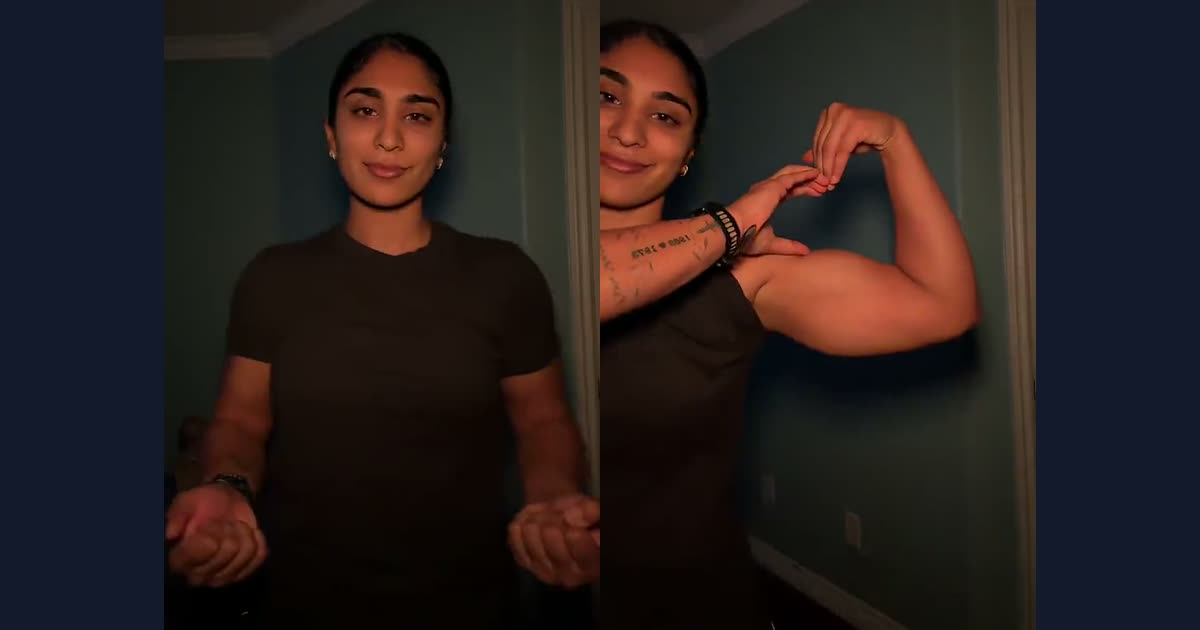
The motion is designed as one compact sequence. The person faces the camera, lifts and flexes one arm, brings the free hand across the bicep, closes the heart shape and holds it for the final beat. Keeping the photo front-facing with the upper body visible gives the template enough room to follow that sequence.
Prepare a photo that reads clearly
Use even lighting, a visible face and an unobstructed shoulder and upper arm. Leave space around the body because the output is vertical. A simple background helps the arm silhouette stand out. Avoid group photos, heavy filters, sunglasses or crops that remove the elbow. Upload a JPG, PNG or WebP file up to 10 MB. Check the thumbnail to make sure the face and shoulders remain visible.
The photo supplies the person; the reference supplies the movement. That separation lets the seven-second template keep its recognizable timing while adapting the subject in your image. Review the result before sharing it and remove any version you no longer need from your account.
Choose a photo for the whole movement
Start with a single adult subject. A wider upper-body portrait shows the posture and clothing around the arm alongside the person’s face. Look at the space above the elbow and beside the shoulder: the pose needs room there as the forearm rises. Pick the image that already leaves that space, then check the upload preview for an accidental crop.
For a friendly message, a relaxed expression and simple outfit keep attention on the heart. For a fitness-themed joke, a visible arm makes the change from the starting pose to the final flex easier to follow. Compare two possible portraits at thumbnail size and choose the one where the face, shoulder and upper arm remain easy to distinguish.
What the preview represents
The preview shows the original reference clip. Watch its camera angle, four movement beats and final hold to see the sequence this template follows. The linked Bicep Heart Trend article explains the gesture, examples and Google Trends chart.
The person starts with both hands low, then brings one arm into the flex. Follow the opposite hand as it crosses the chest and curves beside the upper arm. The final hold is the useful reference point when you compare the completed gesture with the starting frame.
Why the Bicep Heart Trend generator stays at seven seconds
The seven-second reference includes the complete reveal: the arm rises early, the hand joins in the middle and the heart stays visible at the end. Watch that final hold before selecting a portrait. The face and arm should both have space in the image so the gesture remains easy to follow.
A seven-second clip suits a quick greeting, a fitness reaction or a playful message. In the vertical reference, the face stays near the top of the frame while the heart takes shape beside it. That composition lets the viewer follow the expression and gesture together.
What to check in a finished clip
Follow the face through the arm lift, then look at the hand as it reaches the bicep. The heart should be readable at the end, and the fingers should move coherently from one frame to the next. Watch the full clip once at normal speed before pausing the final frame. A frame can look plausible on its own while a transition still needs review.
The selected duration costs 7 credits under this template’s one-credit-per-second rule. New accounts start with zero credits. Buy a credit pack on the pricing page, then upload your photo and submit the seven-second task. Submitted tasks appear in My videos with their current status. Review the completed clip there before downloading it.
Before you share
Label an AI-made result clearly when you share it. Add a caption that fits the message: a greeting can name the recipient, while a fitness post can keep attention on the flex. Replay the exported file at normal speed and check the ending before you post. The heart’s final outline should still be visible after any crop or caption overlay.
Questions, answered
Can I generate a longer Bicep Heart video?
This template offers only the seven-second reference. It includes the arm lift, the hand forming the heart and the final hold.
What photo should I upload?
Use one clear adult portrait with permission. Keep the face unobstructed and leave room around the shoulders. JPG, PNG and WebP files up to 10 MB are accepted.
What happens if the task fails?
A failed task returns its 7 credits. Check the status in My videos before submitting another task; a new submission spends credits again.